 how-to
How to Troubleshoot Smart HVAC System Connectivity
Table of Contents
- Before You Start: What You'll Need
- Step 1: Power Cycle Your HVAC System and Router
- Smart Thermostat Wi-Fi Troubleshooting: Signal, Band, and Interference
- HVAC Control Module Reset Procedure: Factory Reset and Re-Pairing
- Check Your Smart Hub, Bridge, and App Sync
- Fix IP Address Conflicts and Router Settings for Smart HVAC Connectivity
- Firmware Updates and Airflow Checks: Maintenance That Prevents Dropouts
- Smart HVAC System vs Manual Thermostat Cost: Is Connectivity Worth It?
- Frequently Asked Questions
Last Updated: September 18, 2026
Before You Start: What You'll Need
A smart thermostat that loses its Wi-Fi connection is one of the most common HVAC headaches homeowners face. This Air CareSaver guide walks through how to troubleshoot smart HVAC system connectivity step by step, from simple reboots to router-level fixes most support pages skip.
Before you touch anything, gather a few basics:
- Your thermostat model and mobile app login
- Your Wi-Fi network name and password
- A phone or tablet with the manufacturer's app installed
- Five to ten minutes of patience
Step 1: Power Cycle Your HVAC System and Router
Power cycling means cutting power to both your HVAC system and router, then letting each restart cleanly. It clears stale connections and forces devices to renegotiate.
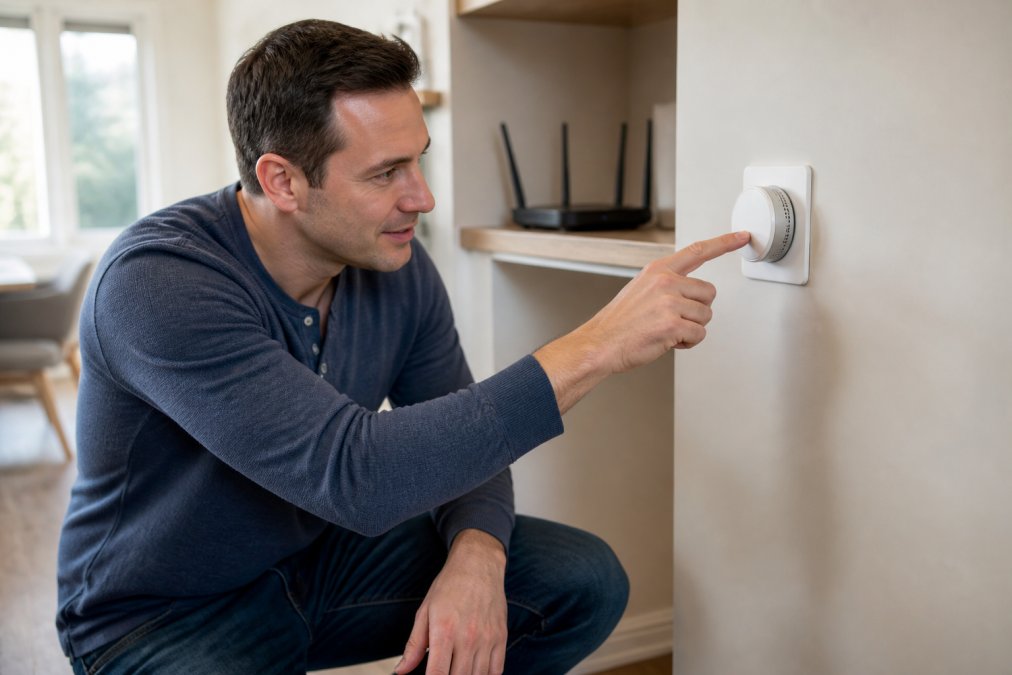
Here's the sequence:
- Turn the thermostat to Off from the wall unit or app.
- Flip the breaker that feeds your air handler and condenser.
- Unplug your router and modem.
- Wait a full 60 seconds.
- Restore the breaker, then plug the router back in.
- Wait for the router lights to stabilize before powering the thermostat back on.
How to Safely Power Cycle Your HVAC System
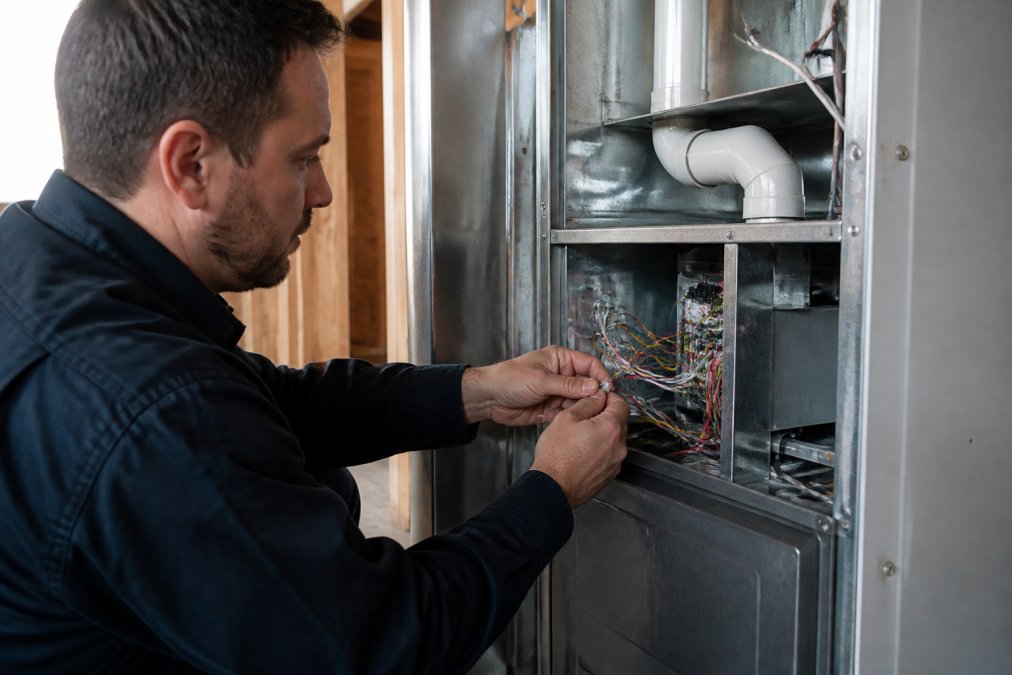
Always cut power at the breaker, not just the thermostat; otherwise the low-voltage control board stays energized and the reset won't fully take. If your system uses a C-wire, confirm the thermostat shows a live display after reboot, no display usually points to a tripped breaker or loose wire, not a network problem.
Smart Thermostat Wi-Fi Troubleshooting: Signal, Band, and Interference
Weak Wi-Fi signal is the most common cause of intermittent smart thermostat dropouts, but it is usually a symptom of a band problem, not a distance problem. Work through signal, band, and interference in that order.
Step 1: Read the actual signal number
Open the thermostat's network menu and find the RSSI (received signal strength indicator) reading, expressed in negative dBm, where closer to zero is stronger:
- -30 to -50 dBm: excellent; connectivity issues are almost never signal-related here.
- -50 to -60 dBm: good; fine for most smart HVAC devices.
- -60 to -70 dBm: marginal; expect occasional latency and dropped cloud syncs.
- Below -70 dBm: poor; disconnects are expected, and no amount of app re-pairing will fix it.
Step 2: Confirm which band the thermostat joined
Most smart thermostats, hubs, and bridges are 2.4GHz-only radios that physically cannot see a 5GHz network. The 5GHz band is faster but has shorter range and worse wall penetration, which is why manufacturers keep HVAC devices on 2.4GHz.
To fix it:
- Log into your router admin page (commonly 192.168.1.1 or 192.168.0.1, or via the manufacturer's app).
- Find the wireless settings and turn off band steering, or disable "Smart Connect," "One Wi-Fi Name," or the equivalent merged-SSID option.
- Give the 2.4GHz and 5GHz networks different names, for example,
HomeWiFiandHomeWiFi-5G. - Save and let the router restart.
- On the thermostat, forget the old network and re-join the 2.4GHz SSID specifically.
- Re-check RSSI. If it improved, the band was the problem.
Step 3: Force your phone onto 2.4GHz during setup
Many setup failures happen because the phone is on 5GHz while the thermostat joins 2.4GHz. During pairing, temporarily connect your phone to the 2.4GHz SSID. If that SSID doesn't appear, move a few rooms away from the router until it does, or toggle Wi-Fi off and on.
Step 4: Reduce interference and reposition
2.4GHz shares spectrum with a lot of household gear. Common culprits:
- Microwaves (especially older units) during operation
- Cordless phone base stations
- Baby monitors
- Wireless security cameras on 2.4GHz
- Neighboring networks crowding the same channel
Practical fixes:
- Move the router or add a mesh node so the thermostat has a clear path.
- Remove metal objects, mirrors, and dense furniture between the router and the thermostat wall.
- In router settings, set the 2.4GHz channel to 1, 6, or 11, the only three non-overlapping channels in the 2.4GHz band. Auto-channel selection often lands on an overlapping channel.
- Set channel width to 20MHz on 2.4GHz for stability. 40MHz on 2.4GHz increases interference in most homes.
HVAC Control Module Reset Procedure: Factory Reset and Re-Pairing
A factory reset wipes saved network credentials and returns the thermostat to setup mode. Use it when power cycling and band changes fail.
Steps:
- Open Settings on the thermostat.
- Find Reset or Advanced Options.
- Choose Factory Reset or Network Reset.
- Confirm the prompt and wait for the unit to reboot.
- Reopen the mobile app and add the device as new.
- Re-enter your 2.4GHz Wi-Fi password.
Check Your Smart Hub, Bridge, and App Sync
If your thermostat connects through a smart hub or bridge, the problem may sit there. Unplug the hub, wait 30 seconds, plug it back in, and confirm it shows online in its own app.
Next, check app-to-device syncing:
- Force-close and reopen the mobile application.
- Log out and back in.
- Confirm the thermostat appears under the correct home or zone.
- Check for pending device pairing requests.
Fix IP Address Conflicts and Router Settings for Smart HVAC Connectivity
Once signal and band are ruled out, the next layer is the router's network configuration, where most manufacturer support pages stop, and where many intermittent dropouts originate.
Diagnose an IP address conflict
An IP address conflict happens when two devices claim the same address. The router's DHCP server hands out addresses from a pool, and if one is later given to another device (or a device was manually set to a static IP inside the pool), both fight over it. Symptoms:
- The thermostat connects, works for a while, then drops and reconnects repeatedly.
- Other devices on the network also lose connectivity intermittently.
- The thermostat shows online in the router's client list but offline in the manufacturer's app.
Set a DHCP reservation for the thermostat
The fix is a DHCP reservation (also called "static lease" or "address reservation"), which tells the router to always give the thermostat the same IP without manually configuring a static IP on the device, important, because a manual static IP inside the DHCP pool causes most conflicts.
Steps (labels vary by router brand):
- Find the thermostat's MAC address in the thermostat's network menu or the manufacturer's app.
- In the router admin page, open DHCP or LAN settings and find the reservation or static-lease list.
- Add the thermostat's MAC address and pick an IP outside the active DHCP pool range (for example, if the pool is 192.168.1.100-192.168.1.200, reserve 192.168.1.50).
- Save and reboot the router, then reboot the thermostat.
- Confirm the thermostat now shows the reserved address in the router's client list.
Router settings that break smart HVAC connectivity
Review these settings in the router admin page:
- AP isolation (client isolation): If enabled, wireless devices cannot talk to each other. This breaks hub-to-thermostat communication and local app control. Turn it off for your home network.
- MAC filtering: If enabled, only allow-listed devices can join. Add the thermostat's MAC address to the allow list, or temporarily disable filtering to test.
- Firewall rules: Smart thermostats need outbound access to the manufacturer's cloud servers. With a strict firewall or third-party security appliance, confirm outbound traffic on the manufacturer's documented ports is allowed, blocking it shows the thermostat offline in the app even though it is connected to Wi-Fi.
- Port forwarding: Only needed to reach the thermostat directly from outside your network. Most smart HVAC systems use cloud relay, so skip it unless the manufacturer explicitly requires it.
- VPNs: A VPN on your phone or router can route app traffic through a different network path and break device discovery. Disable the VPN during setup and troubleshooting.
- Guest network: If the thermostat is on a guest SSID, it may be isolated from your main network and from the hub. Move it to the main 2.4GHz SSID.
- Router firmware: Outdated router firmware can cause DHCP and band-steering bugs. Check for updates in the admin page.
Local vs. remote control: a quick diagnostic
Use this to narrow the fault:
- Local control works, remote fails: The thermostat is on the network but cannot reach the cloud. Check firewall rules, VPN, and outbound port access.
- Remote works, local fails: The app is reaching the cloud, but your phone cannot see the device on the LAN. Check AP isolation and whether the phone is on the same SSID.
- Neither works, but the thermostat shows connected: Likely a DHCP conflict or a stale cloud session. Reboot the router, then the thermostat, in that order.
- Thermostat never appears in the router's client list: The device is not joining Wi-Fi at all. Return to the band and signal section.
Firmware Updates and Airflow Checks: Maintenance That Prevents Dropouts
Outdated firmware causes repeat disconnects. Check for updates under device settings in the app, install them over a stable connection, and never cut power mid-update.
Smart HVAC System vs Manual Thermostat Cost: Is Connectivity Worth It?
Smart thermostats cost more upfront than manual models, but the payoff comes from scheduling, remote access, and energy savings. Manual thermostats are cheaper and never lose Wi-Fi because they don't use it.
| Factor | Smart HVAC System | Manual Thermostat |
|---|---|---|
| Upfront cost | Higher | Lower |
| Remote access | Yes | No |
| Scheduling | Automatic | Manual |
| Connectivity issues | Possible | None |
| Energy savings potential | Higher | Lower |
Frequently Asked Questions
What are the most common causes of smart thermostat connectivity loss?
The most common causes are Wi-Fi signal interference (especially on the 2.4GHz band), outdated firmware, IP address conflicts, and router settings that block the thermostat from reaching the cloud. Power cycling the HVAC system and router often restores connection. If dropouts continue, check that your router uses a separate 2.4GHz network and that DHCP reservations are set for your thermostat's MAC address.
How do I reset my HVAC control module safely?
First, turn off power to your HVAC system at the breaker. Wait five minutes, then locate the control module (often near the air handler or furnace). Follow the manufacturer's specific reset sequence. Restore power and let the system reboot. If you're unsure, call a licensed technician; improper reset can damage the board or erase pairing data.
Why isn't my thermostat communicating with my AC unit?
Communication failures often stem from a tripped float switch, a blown low-voltage fuse, or a loose C-wire connection. Check the air handler for a full drain pan that may have triggered a safety switch. Also verify that the thermostat is set to the correct mode (cool/heat) and that the batteries are fresh. If the screen is blank, the issue is likely power, not network.
When should I call a professional for HVAC connectivity issues?
Call a professional if you've tried power cycling, resetting the thermostat, and checking your Wi-Fi network but the system still won't connect. Also call if you see error codes on the HVAC controller, smell burning, or hear unusual noises. A licensed technician can diagnose low-voltage wiring problems, control board failures, or refrigerant issues that affect connectivity and performance.
Persistent connectivity failures often hide deeper HVAC problems, from weak control board voltage to failing components that no app reset can fix. Air CareSaver brings 21+ years of licensed experience, accurate diagnostics, and preventative maintenance plans that stop expensive breakdowns before they start. Get started with Air CareSaver and restore reliable, year-round comfort.